
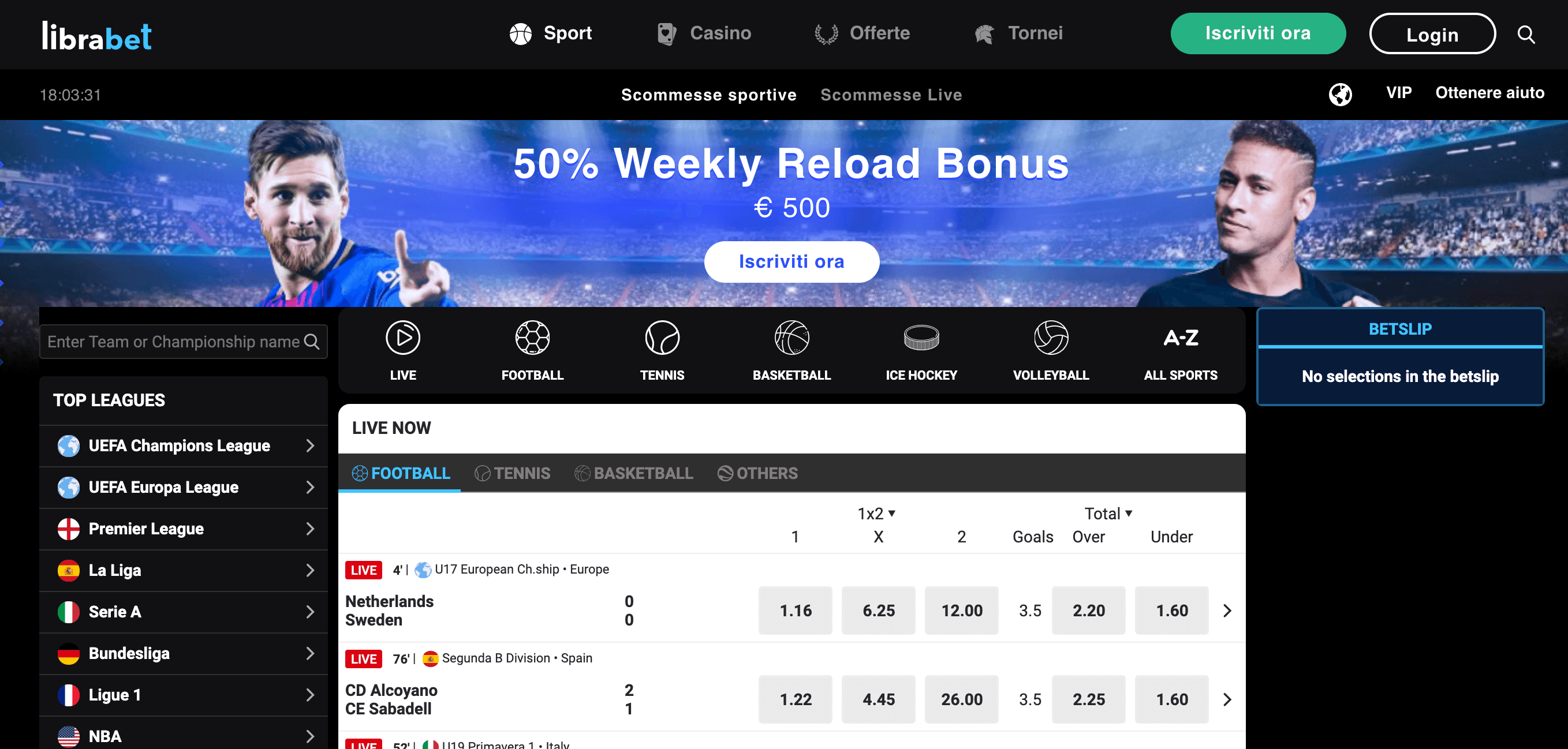
If you’re using the librabetcasino app download app on your mobile device in Switzerland, you can reach customer support without exiting the app. The in‑app chat deals with quick questions about account issues, transactions, identity checks, promotions, and technical problems. This walkthrough shows how the chat operates, which mobile devices and OS platforms run it, how to install and set up the app, and what to expect from speed and data consumption. We also contrast the mobile support experience with the desktop site, so you can choose the most convenient way to receive assistance while you play. Everything here is derived from the general app experience and official guidance.
In What Way Support Chat Functions in the Librabet Casino Mobile App
Inside the Librabet Casino app, the support chat usually sits in the main menu or in the account area. You click a chat icon, a headset symbol, or a help button, and the app brings up a conversation window. Usually a short automated message welcomes you first and requests you to choose a topic. That step sends your question to the right team. After you pick a category like payments, verification, or technical issues, you enter your message. The chat history stays visible during the session, so you can scroll back and reread earlier replies. The whole feature is built to keep you inside the app instead of pushing you to email.
Before you begin a chat, have the relevant bits ready: your registered email, your username, and any transaction or bonus reference linked to the problem. A clear description assists the agent reply faster. The chat can usually handle common tasks such as deposit status, withdrawal timeframes, bonus rules, document verification, and app navigation. If your issue needs a specialist, the agent might open a ticket or ask for a follow‑up email. Never share your password or full card numbers in chat. A real support agent will never ask for your password, so if you see such a request, report it immediately.
Availability and response times shift depending on the support load and your location. The app normally shows the chat status — online or busy — before or after you open the conversation. An automated assistant typically jumps in right away and can answer simple questions around the clock. When the chat is handed to a human, the wait can be a few minutes during quiet periods and longer at peak hours. Keep the app open to catch the reply quickly. If the chat disconnects, reopen the conversation and mention your earlier ticket or the agent’s name to pick up where you left off.
Installing manually the Android App Without Google Play
Sideloading means loading an APK file straight instead of via Google Play. Some Android users in Switzerland can use this option when the app is absent from their regional Play Store, when Play Protect marks a gambling app, or when the operator directs players to a direct download. Librabet Casino can offer an official APK from its own website. Stick to the download link shown on the official site — never third‑party APK repositories. Unofficial files might include malware or outdated code. Sideloading is common for casino apps in regions with store restrictions, but it takes a few extra steps and a device setting that allows installations from unknown sources.
To sideload the Librabet Casino Android app, initially visit the official Librabet Casino website and find the mobile app page. The site will display a download button for the APK file. After you tap it, the file saves to your Downloads folder. Open the file and Android might show a warning about an unknown source. You need to allow installation from that source — normally by switching the permission in settings or in the pop‑up that shows up. The installer then executes and places the app on your device. inizia qui It’s smart to delete the APK file later to free up storage space.
Because sideloaded apps don’t update automatically through Google Play, you’ll need to manage updates on your own. Librabet may send a notification or present an in‑app message when a new version is available. trova più dettagli Return to the official site to download the latest APK. Before installing, verify the file source and double‑check that the website address is accurate to reduce the security risk. Stay away from APKs from forums, file‑sharing sites, or social media links. If an update is unsuccessful, clearing the app cache or uninstalling the old version before installing the new one frequently helps. The support chat can provide the official link or verify whether your current version is outdated.
Supported Mobile Devices and Operating System Demands
On iPhone and iPad, the Librabet Casino app supports recent Apple devices. Keep iOS updated to a version the app supports. Apple hardware from the last few generations runs the app without trouble, because the casino uses a mobile‑first layout. The App Store listing shows the minimum iOS version and compatible devices — that information can vary after new updates. Storage space counts too, because updates can add several hundred megabytes over time. iPads are supported, though the layout may feel tighter on a phone screen. If you prefer a bigger display, you can still use the app in a scaled view.
On Android, the app functions with most mainstream phones and tablets from recent years. Performance depends on RAM, processor, and Android version. A device with at least 4 GB of RAM and a recent Android version usually is enough, but older hardware can still run the app with slower load times. Enable automatic updates or grab new versions manually from the official source. Screen size influences the layout; smaller phones may show fewer elements at once. The app may not be listed in every regional Google Play store, so Librabet sometimes provides an APK download through its official website as an alternative.
Check the official compatibility notes before you install. The casino might mention recommended devices, but those lists aren’t always complete. A phone with a recent operating system and at least 2 GB of free storage is more likely to run smoothly. Regular app updates matter — they fix bugs, improve compatibility with new models, and tweak support chat features. If you get crashes, update the app and your OS first, then restart the device. When problems remain, the in‑app support chat can help troubleshoot, though you may need to share the agent your device model and OS version.
Performance, Data Usage, and Connection Considerations on Mobile
Mobile performance relies on the phone’s processor, free memory, and your network connection. The Librabet Casino app launches games quickly on mid‑range devices, but live casino and high‑definition slots may require more muscle. Closing background apps releases RAM and minimizes stuttering. Keep at least 10 to 20 percent battery and avoid running the app in power‑saving mode during live games, because throttled processing can cause lag. If the app freezes, a quick close and reopen often resolves the temporary glitch. Ongoing performance problems may be solved by updating the app or your OS before you reach out to support chat.
Support chat itself uses very little data, because text messages are tiny. The heavier data drain comes from loading games, graphics, and live streams. A slot session can use several megabytes per minute, while live dealer games can use more because of the video stream. If you’re on a limited mobile plan, keep an eye on your carrier usage or connect to Wi‑Fi for longer sessions. The app may offer quality settings for live games that can lower data use. Download app updates over Wi‑Fi, too. The support chat remains usable on a shaky connection, but messages may arrive a little late if the network is unstable.
A stable connection benefits both gameplay and support chat. Wi‑Fi usually gives lower latency than mobile data, though public Wi‑Fi can be less secure. If you use a VPN or an ad‑blocker, you might experience chat disconnections or app errors — turning these off can fix the trouble. When the chat window won’t open, toggling from Wi‑Fi to mobile data or back often corrects it. Restarting your router or flipping airplane mode on and off can also renew the connection. The app will normally display a connection error if the server can’t be reached. In that case, try again after a few minutes, and if the app stays offline, reach support through the website.
Key Features of the Mobile App Apart from Support Chat
The Librabet Casino app is built around a compact lobby that keeps games, account tools, and help options just a few taps away. The main menu typically groups slots, table games, live casino, promotions, and account settings. A floating support chat button commonly stays visible, so you can ask for help without leaving a game. The app retains your place in the lobby, which makes switching back to the chat after checking a game smoother. Navigation relies on large touch targets and shallow menus to avert mis‑taps. This design genuinely shines on smaller screens, where a cluttered interface would slow down help requests.

The app includes a cashier area for deposits and withdrawals. You can select from payment methods available in Switzerland, complete transactions, and check your balance. The cashier might show processing times and limits per method. Push notifications can notify you to new support messages, withdrawal updates, or bonus offers, so you shall not miss an agent’s reply. The promotions page inside the app lists current offers, but always check the terms attached to each one. Support chat can clarify bonus rules, yet the exact terms shown in the app stand the official reference.
Responsible gambling tools reside right alongside the support chat. You can set deposit limits, session reminders, and self‑exclusion periods from the account area. These controls matter because if you spot a problem, you need to act fast on your phone. When a limit setting is confusing or doesn’t apply as expected, the support chat guides you through the correct menu. The app also presents your transaction history and game history, which makes it easier to describe an issue to an agent. Having these tools in the same space as the chat minimizes the need to juggle between the website and email.
Installing and Configuring the App on iOS and Android
If you use an iPhone or iPad, locate the Librabet Casino app in the Apple App Store. Browse the brand name, verify that the developer matches the official casino, and review user reviews and the update date. Click the app icon, verify with Face ID, Touch ID, or your Apple ID password, and the download starts. Once the icon shows up on your home screen, open the app and log on or create an account. The first launch might request for notification permission. Enabling notifications can help you see support chat replies and account updates, but it’s not required. The app does not need a separate Apple ID payment to install.

On Android, you can launch the Google Play Store and find Librabet Casino. Verify the official listing by reviewing the developer name, download count, and recent update history. Click Install, and the store manages the download and installation. The new icon appears on your home screen or in the app drawer. Android may request for permissions like storage or notifications during installation or on first launch. Review those requests and allow only what you’re comfortable with. You can open the app right after installation. If the app is not available in your region, employ the official APK method explained in the next section.
After installation, start the app and finish the sign‑in. New users can provide an email, create a password, and validate their details. Returning players just log in with their regular credentials. The app displays the mobile lobby, and you’ll spot the support chat icon right away. Confirm the app is up to date before you add funds or reach support. An outdated installation may display old support options or struggle to connect. In the settings or account area, you can also select your preferred language, notification preferences, and responsible gambling limits. Doing this setup early makes later support chats more efficient because the agent can find your account more easily.
In-App Support Chat Versus the Desktop Experience
The largest difference between the mobile app and desktop support is accessibility. On the app, the chat icon is always visible while you enjoy a game or navigate the lobby. On a desktop, you usually have to jump to a distinct tab or window to access the help chat, which can disrupt a live session. The app’s always-on floating button ensures you can pose a question mid‑game without abandoning the action. Desktop support provides the equivalent agents and response times, but the app maintains everything in one place — you always keep track of your game or your conversation. That closer integration positions the mobile app the more seamless choice for quick help while you place bets.